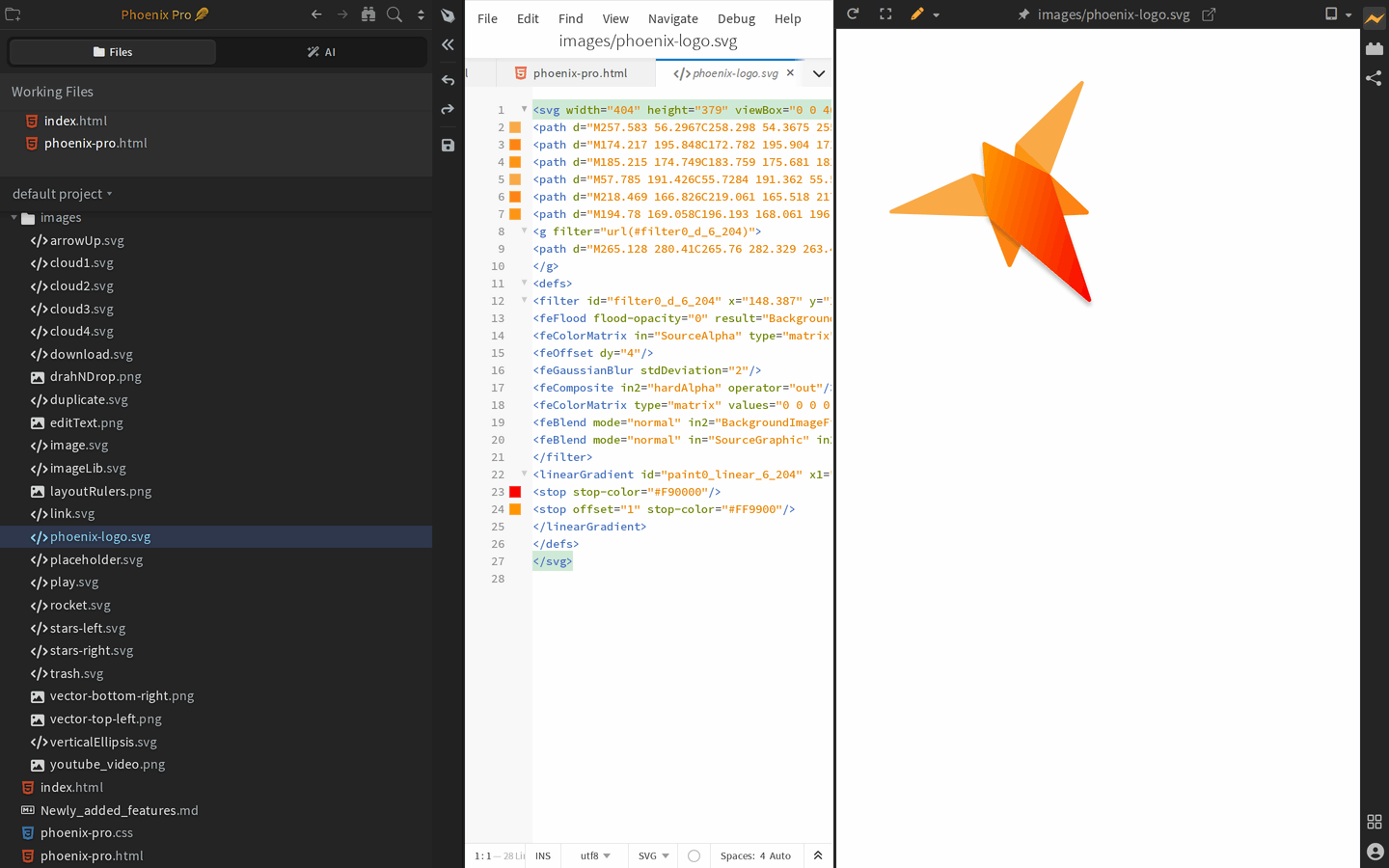
Phoenix Code is a free, open-source code editor that opens SVG files as editable code and renders them live. Change a path, a fill, or a viewBox and watch the image update as you type. Use it instantly in your browser or download the desktop app.
Free & open source · Browser or desktop · No account required
Live SVG PreviewSVG Tag & Attribute AutocompleteColor Swatches & PickerFree & Open SourceWindows, Mac, Linux & BrowserClaude Code AI Built In
An SVG Code Editor, Viewer, and Preview in One
SVG (Scalable Vector Graphics) is the XML format behind the icons, logos, and illustrations on most websites. Phoenix Code opens .svg files as readable, editable code and renders the image beside it, updating live as you type.
It also works as an SVG viewer. Open any .svg file to see what it actually looks like, and inspect the markup at the same time, instead of dragging files into a browser tab one by one.
And because Phoenix Code is a real code editor, you get more than a paste-and-preview textbox: syntax highlighting, multi-file projects, Git integration, and Claude Code AI assistance are all built in, so you can edit the SVGs inside a real website or app project.
Everything You Need to Edit SVG Files
Hand-edit icons, tweak logos, and clean up exported vectors without opening a heavyweight design app.
Live SVG Preview
See the rendered image update as you type. Change a fill, adjust a path, or resize the viewBox and watch the result instantly.
SVG Tag & Attribute Autocomplete
Code hints for SVG elements and attributes as you type, from path and viewBox to gradients, filters, and masks.
Color Swatches & Picker
Fill and stroke colors show inline swatches next to the code. Click one to open a color picker and adjust colors without leaving the editor.
Format Messy SVG Code
Exported SVGs often arrive as one long line. One click reformats the markup into clean, indented, readable code, and paired tags rename together when you edit them.
Claude Code AI Assistant
Ask AI to tweak a path, recolor an icon set, or explain what a filter does. Use your existing login/key; your files stay local.
Real Projects, Not a Textbox
Open a whole icons folder, edit multiple SVG files side by side, and commit changes with built-in Git. Works offline in the free desktop app.
Open & View SVG Files Online
Need to open an SVG file someone sent you? Open it at phcode.dev and you will see the rendered image and its source code side by side, with no installation and no account. It works as an online SVG viewer and opener.
Hovering an SVG reference in your HTML or CSS shows a thumbnail of the image with its dimensions, which makes finding the right icon in a large project much faster.
Edit SVG Online, Privately
Nothing is uploaded to a server. Whether you use the browser editor or the desktop app, your SVG files stay on your machine. No account, no sign-up, no watermarks.
One honest note: Phoenix Code is a code editor, not a drawing tool. If you want to drag shapes around on a canvas, a visual editor like Inkscape is a better fit. If you want precise control over the markup that ships in your product, editing the code directly is exactly the point.
How to Open and Edit an SVG File
From a raw .svg file to a finished edit in under a minute.
Open Phoenix Code
Launch the editor instantly at phcode.dev, or install the free desktop app for Windows, macOS, or Linux.
Open your .svg file
Open the folder that contains your SVG, or drag the file into the editor. It opens as editable code with the image preview beside it.
Edit with live preview
Change paths, colors, sizes, or text and watch the rendered image update as you type.
Save and ship it
Save the file and drop it straight into your website, app, or README. The markup you edited is exactly what ships.
Yes. Editing SVG files with live preview is completely free in Phoenix Code, both in the browser at phcode.dev and in the desktop app. The editor is open source.
Open phcode.dev in your browser, then open the folder with your .svg file and click it. You will see the rendered image and the editable source code side by side, with no installation and no account required.
Yes. The rendered image updates as you type, so you can adjust a path or a color and see the result immediately in the preview panel.
No. Phoenix Code edits the SVG source code rather than offering a drawing canvas. That makes it ideal for cleaning up icons, tweaking colors and paths, and keeping precise control of the markup. For freehand illustration, a visual tool like Inkscape works better.
Start editing SVG now
A free, open-source SVG code editor and viewer with live preview, in your browser or on your desktop.
Cookies help us make your experience better by tailoring our site to your needs. By clicking "Accept All", you consent to our use of cookies. Privacy Policy